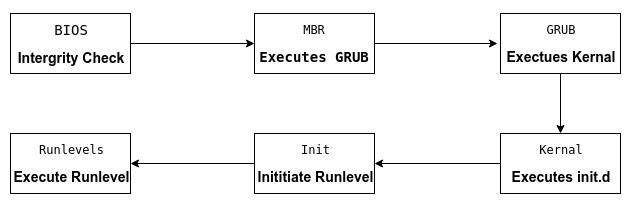
When you hit the power button on your Linux machine, something happens, actually alot of things happens behind the screen as abstration. Making the devices ready to running the actual OS, the linux boot process is quite interesting. Let me walk you through what really happens in those crucial seconds.
1. Power On and Firmware (UEFI)
The moment you press power, the Power Supply Unit sends a “power good” signal to the motherboard. The CPU wakes up and begins executing instructions from firmware stored on the motherboard.
Today, most systems use UEFI firmware (Unified Extensible Firmware Interface) rather than legacy BIOS. UEFI performs a quick Power-On Self Test (POST) to check memory and CPU, initialize hardware, and then consults its boot order to find a bootable device.
Instead of scanning for an MBR signature like in older systems, UEFI looks for bootloaders (EFI executables) in the EFI System Partition (ESP) a small FAT32 partition that holds boot managers like GRUB.
(Fun fact: CPUs still power up in a very basic mode, but UEFI moves into 64-bit mode almost immediately.)
2. The Bootloader (GRUB or Others)
Once UEFI finds a bootloader, it loads it directly from the EFI System Partition. The most common one is GRUB, but some systems use systemd-boot or rEFInd.
With UEFI, GRUB isn’t split into “Stage 1” and “Stage 2” anymore. It runs as a normal EFI program and can directly read your /boot partition thanks to built-in filesystem drivers. Its main job is to present a menu and load two critical components: The Linux kernel (the core operating system) and initramfs (a temporary root filesystem with essential drivers)
3. Kernel Initialization
When the bootloader hands control to the kernel, the OS itself begins to take over.
Memory & Hardware Setup
The kernel sets up virtual memory using page tables. It initializes memory allocators (SLUB is the default on most distros). It detects hardware and loads the necessary drivers, often from the initramfs. This lets the kernel access the root filesystem regardless of whether it’s on SATA, NVMe, or something exotic.
Root Filesystem
After hardware drivers are loaded, the kernel mounts the real root filesystem and pivots away from initramfs.
4. Init System – The First Userspace Process
Once kernel initialization is complete, it starts the first userspace process: PID 1. On almost all modern distributions, that’s systemd.
Why systemd?
- Parallel service startup for fast boot times
- Built-in logging, socket activation, and dependency handling
- Standard across most Linux distributions
Other init systems still exist like OpenRC (Gentoo, Alpine, Artix) or SysV Init (rare, mostly for compatibility) but systemd is now the norm.
systemd starts essential services such as networking, display manager, and hardware-specific daemons. It carefully respects dependencies for example, network-dependent services won’t start until the network is ready.
5. Login Ready
Next, the display manager (GDM, SDDM, LightDM) starts your graphical session. Today, most desktop environments default to Wayland (faster, more secure, and modern) with X11 as a fallback.
Here’s what happens:
- The display server (Wayland or X11) is launched.
- The login screen appears.
- User credentials are verified, modern Linux uses PAM (Pluggable Authentication Modules), which in turn checks hashed passwords in
/etc/shadow. - Your desktop environment starts up.
From this point, you’re at your desktop, ready to work.